What you'll actually see, day to day.
ntools-uem runs quietly in the background. Most people never need this page, but here's what the few visible parts are for.
Looking for the admin side instead? See the Admin Guide.
The tray icon
A small icon, the N of the logo, in your notification area is the only visible sign ntools-uem is running. It keeps what your IT team assigned to you (settings, shortcuts, files, network drives, your wallpaper) up to date automatically; you don't need to open or configure anything. Click it for the overview, or right-click it for a short menu:
- ✓ Open overview Shows what is assigned to you and your computer (next section).
- ✓ Sync & Refresh and Quick Refresh Apply the latest settings now. See "Refreshing" below.
- ✓ User log and System log Open the logs, which is handy when you are helping your IT team find out what happened.
- ✓ About What ntools-uem does, its version and who it is licensed to. Nothing else about the license is shown here; that is for your administrators.
- ✓ Exit Closes the icon until your next sign-in. Everything else keeps running.
Windows 11 hides new notification icons by default. A few seconds after it starts, ntools-uem switches its own icon on for you, once. If you switch it off yourself, that choice is respected and not undone. You can always show or hide it under Settings, Personalization, Taskbar, Other system tray icons.
The overview
Click the icon and a small window opens at the bottom right. It is a plain read-out of what applies to you, and it only shows your own information.
- ✓ Who and where Your picture, name, job title and email address, your computer's name, and whatever your organisation has filled in for you: department, company, office, location, phone numbers, employee ID. All the text can be selected and copied, so you can paste your computer name straight into a chat with the help desk.
- ✓ Three counters How many groups you are in, how many groups your computer is in, and how many items are assigned to you. Click a group counter to see the groups by name; click it again to close the list.
- ✓ What is assigned The items, with their type (script, registry, file copy, zip extract, shortcut, network drives, wallpaper, user policy), in two groups because they are applied at different moments: At sign-in, as you, and By this computer (as SYSTEM), at every sync.
- ✓ How fresh it is When your details, your computer's details and the assignments were last updated, plus the version. An amber notice appears if your details have not been loaded yet (before your first sign-in run) or are more than 7 days old.
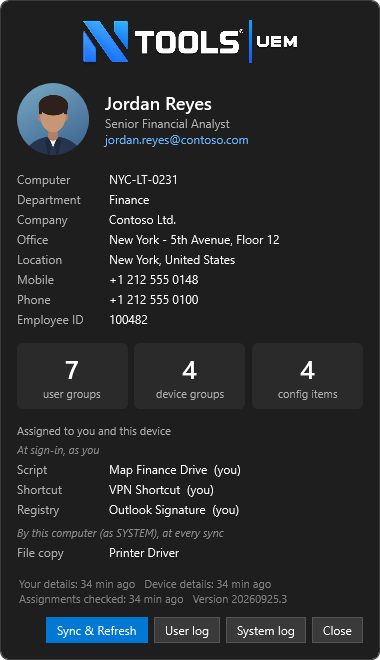
The overview window, opened from the tray icon (fictional example data).
Refreshing: Sync & Refresh and Quick Refresh
Sync & Refresh (a button in the overview, and in the right-click menu) is for when your IT team has just made a change and you don't want to wait for the next automatic check. First your computer fetches the latest settings and files from the server; then your own settings are applied, including what was just fetched; finally the logs are uploaded so your IT team can see the result. A message tells you when it is done, or which step did not finish. Most changes take a minute or two.
While it works the buttons are disabled, so a second click does nothing. If a sync finished less than a minute ago it is not repeated, and if the computer cannot be asked to sync (or it takes more than five minutes), your settings are still applied from what is already on the computer, and the message says so.
Quick Refresh (right-click menu) is the lighter option: it only re-applies what you already have, without asking the server for anything new. Use it when a drive, a shortcut or your wallpaper looks wrong and nothing has changed on the IT side, or after your group membership changed. Both options show the same progress window, and neither can run while another refresh is already going.
At sign-in
When you sign in, a brief status window in the corner of your screen shows your settings being applied: shortcuts appearing, files being placed, drives being connected. It closes on its own after a moment and you don't need to interact with it. If one item cannot be applied, the others still are; the details go to your log, not to your screen.
Network drives, wallpaper and restrictions
- ✓ Your drives follow the network When you connect to the office network or a VPN, the drives you are meant to have appear. When their file server cannot be reached, for example at home without the VPN, they are taken away again, so File Explorer does not hang on a drive that is not there. They come back by themselves once the server answers, without signing out and in. Which drives you get depends on your groups; only drives ntools-uem connected itself are ever removed.
- ✓ Your wallpaper Your desktop background is set when you sign in, and only changed when something about it is different, so it never flickers. If your organisation manages it, a wallpaper you pick yourself is set back to the managed one at your next sign-in.
- ✓ Shortcuts and settings Shortcuts your IT team provides are recreated at every sign-in, so one you delete comes back. Settings are re-applied regularly, so a managed setting that gets changed is put back.
- ✓ Restrictions If your IT team blocks certain programs or settings for standard users, ntools-uem puts those restrictions in place through Windows' own policy system. They do not apply to administrator accounts.
Working without a connection
Your last known settings are kept on your computer, so things keep working normally if you're offline, in a plane or between networks. Once you're back online, ntools-uem catches up automatically at its next check. Nothing about your computer or your activity is sent to the makers of ntools-uem.
Logs and About
The User log and System log buttons open ntools-uem's own log viewer. It shows times in your local time, colours lines by level, and keeps following the file, so you can open the log, trigger the thing you want to see and watch it appear. Browse... opens another log in the same window, and right-clicking lines offers Copy, Copy message only and Select all. The user log is yours; the system log is the computer's background tasks.
About shows what ntools-uem does for you, the version, and "Licensed to" followed by your organisation. It deliberately shows nothing else about the license: dates and device counts are for your administrators.
The tray icon itself uses no network, no credentials and no database. It only reads files in your own profile and the list of assignments on your computer, so it cannot show you anyone else's data.
If something looks wrong
- ✓ A drive is missing Check that you are on the office network or connected to the VPN, then choose Quick Refresh. If the file server cannot be reached the drive is deliberately not shown, and it appears again by itself once it can.
- ✓ A setting or shortcut is not what you expect Choose Sync & Refresh. If your IT team changed something recently this fetches it; if not, it puts things back the way they are meant to be.
- ✓ I can't find the icon Look under Settings, Personalization, Taskbar, Other system tray icons and switch "nTools UEM" on. It starts at every sign-in, so signing out and in also brings it back after Exit.
- ✓ Still not right? Contact your IT team. Open the overview, copy your computer's name, and tell them what you see; they can look up your computer's logs and ask it to refresh without needing access to it.